
Create folder icons for KDE and GNOME
Start from the KDE Breeze or GNOME Adwaita folder, recolor it, and add a symbol, image, or short label. Using a different theme? Upload its folder and design on that.
Updated October 7, 2026
Pick your desktop's folder style

KDE Breeze
The official Breeze folder, for KDE Plasma and other setups that use Breeze.

GNOME Adwaita
The official Adwaita folder, for GNOME and desktops that borrow its look.
The two have different shapes and shading, so pick whichever matches your icon theme. That way your custom folder fits in with the others. If your theme looks like neither one, upload one of its own folder icons as the base instead.
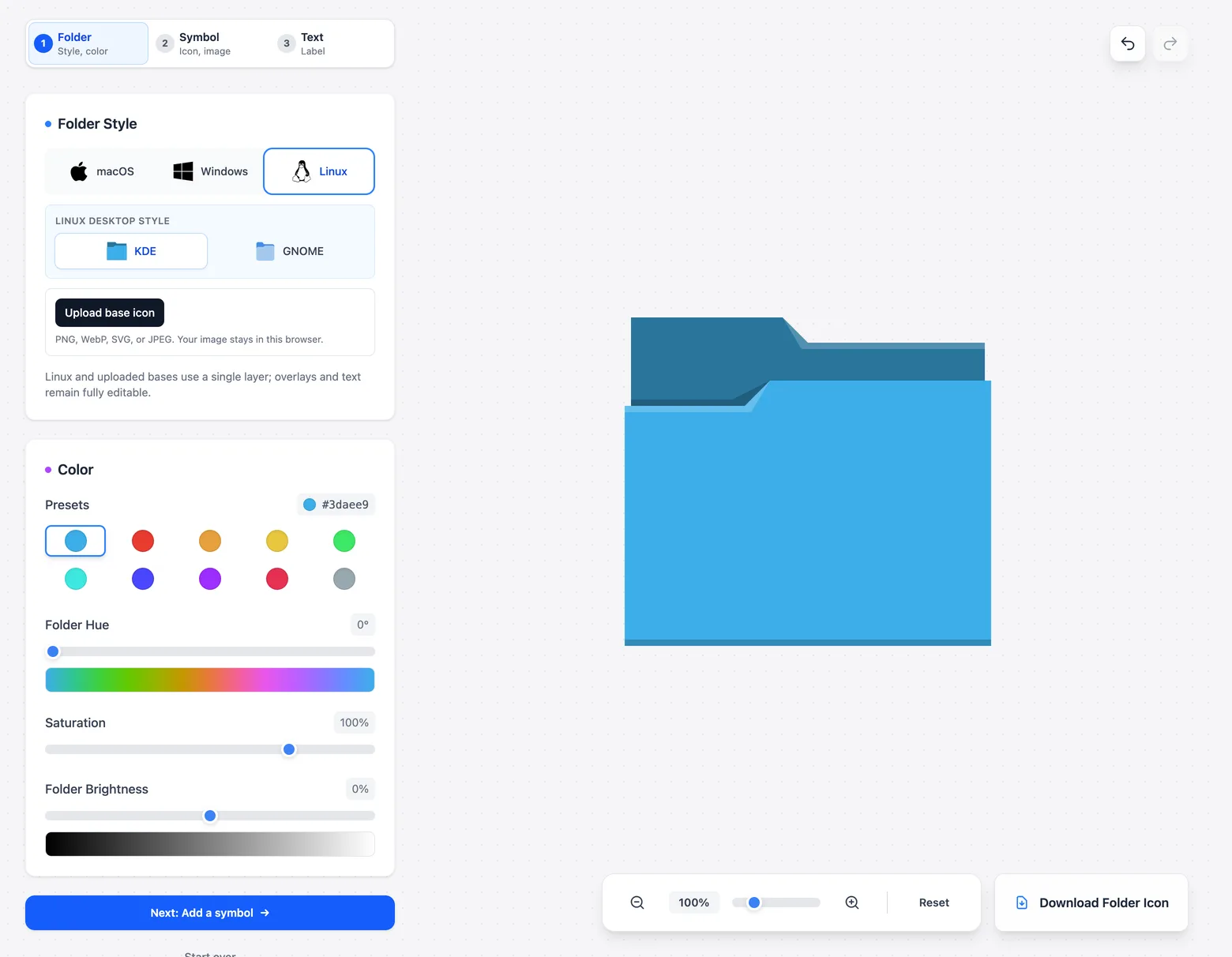
Use your own theme's folder
Click Upload base icon in the Folder Style card and pick a PNG, WebP, SVG, or JPEG. Papirus, Yaru, or whatever you use, any of them works. The file is opened by your browser and never uploaded anywhere.
Pick a square image with a transparent or plain background, at its full size. The editor scales it to fit. If it comes from an icon theme, keep the theme's license and credits with your copy. Note that Linux and uploaded bases are a single layer, so the Multilayer option isn't available for them.
Step by step
- Choose Linux, then KDE or GNOME. Upload a base if neither looks right.
- Set the color, then compare it with a normal folder from your theme before you add anything.
- In the Symbol step, add a built-in symbol, paste an SVG, or drag in a PNG. Go for a simple shape that still reads in a compact file list.
- Only add text if a symbol can't do the job. Project codes and years work better than full names.
- Download a transparent PNG at 128, 256, 512, or 1024 px. Keep the 1024 version for future edits.
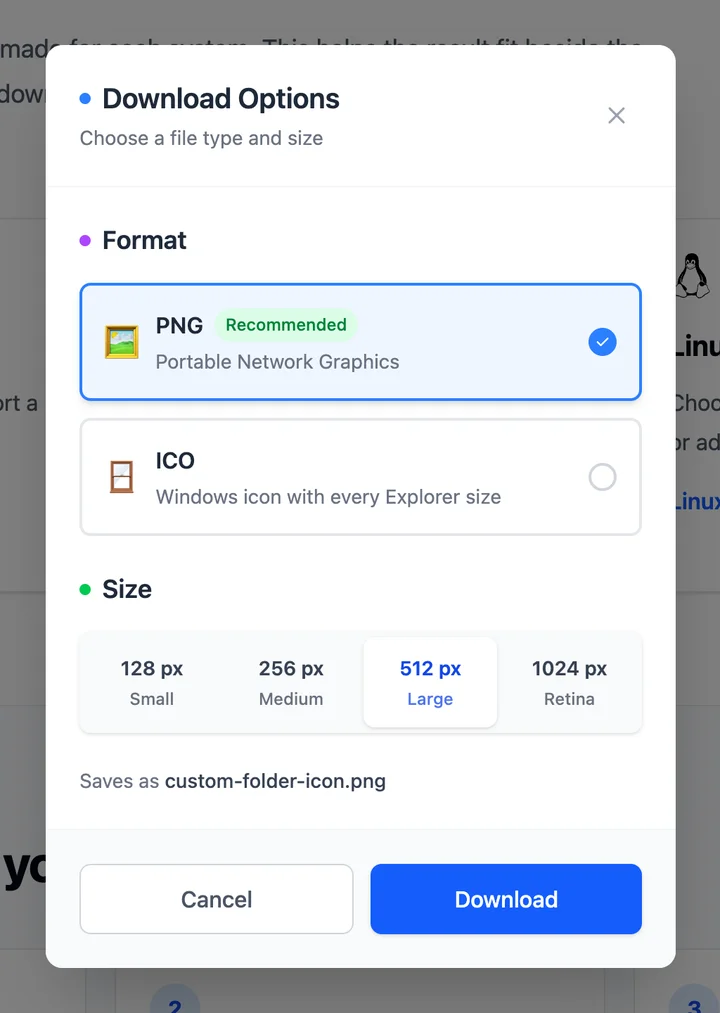
Which size?
256×256 is a good first try for a single folder. Go up to 512 or 1024 if your file manager shows big previews, or if you want a copy you can reuse. 128×128 saves space, but small text and thin lines start to fall apart. Test one folder before you make a whole set.
Applying it on Linux
This depends on your desktop, file manager, and icon theme. In many file managers you can open a folder's properties and click its current icon to pick a new one. Others save the path in folder metadata, or expect icons inside a theme folder. FolderIcon.App only makes the PNG and doesn't change any system settings.
If you're adding the icon to a theme, follow that theme's naming and size rules. A custom icon set on one folder usually won't come with it to another machine, so keep the PNG and your base image somewhere that gets backed up.
If the icon doesn't show up
- Check that your file manager supports custom icons for that kind of folder.
- Make sure the PNG is still there and your user can read it.
- Restart the file manager, or sign out and back in, to clear a cached icon.
- Try a local folder before a network mount or a system-managed path.
Every desktop is a bit different. How you set a custom folder icon depends on your distro, file manager, and icon theme. Whatever you're using, keep the 1024×1024 PNG as your master copy.
Make your icon in the browser
No account needed, and your images never leave your device.