
macOS guide
How to change a folder icon on Mac
macOS lets you replace a file or folder icon with your own image. Create the artwork as a PNG, copy the image in Preview, and paste it into Finder's Get Info window.
Updated July 19, 2026
Native customization or a fully custom icon?
Recent macOS versions can change a folder color and add a built-in symbol or emoji from Finder. Use that option for a quick native treatment. Use FolderIcon.App when you want your own artwork, text, precise colors, opacity, or a layered folder design.
Apple documents both methods in its folder and file customization guide.
Create the Mac folder artwork
- Open FolderIcon.App and select macOS.
- Choose the folder color and brightness.
- Add a built-in symbol, drop a PNG or SVG onto the canvas, or paste an image.
- Add a short text label if needed.
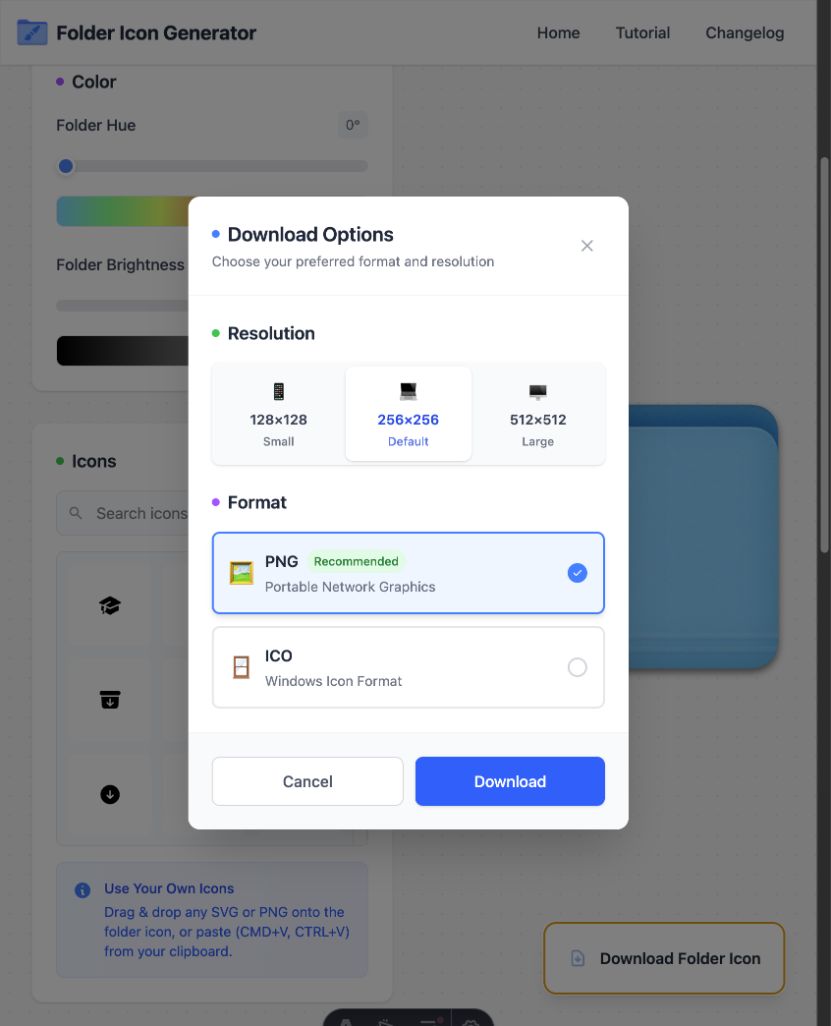
- Click Download Folder Icon, select PNG, and choose 256×256 or 512×512.
Apply the custom icon in Finder
- Open the downloaded PNG in Preview.
- Choose Edit → Select All, then Edit → Copy.
- In Finder, select the folder you want to change.
- Choose File → Get Info, or press Command I.
- Click the small folder icon at the top of the Get Info window. A blue selection outline should appear.
- Choose Edit → Paste, or press Command V.
Click the small icon beside the folder name—not the larger preview lower in the window. Selecting the wrong preview is the most common reason Paste appears unavailable.
Restore the original Mac folder icon
Open Get Info again, select the small icon at the top, and press Delete. Finder removes the custom artwork and returns to the normal system folder icon.
Folders macOS may not let you change
Some protected system folders cannot be customized. Managed Macs can also restrict changes. Test with a normal folder inside Documents or on the Desktop before troubleshooting the image itself.
Create the icon in your browser
No account is required, and images stay on your device.