
PNG to ICO
Turn a PNG into a Windows folder icon
A Windows folder needs an ICO file, but your starting artwork can be PNG or SVG. Place the image onto a Windows folder design and export the finished result as ICO.
Updated August 10, 2026
Prepare the source image
- Use a square image when possible.
- Prefer a transparent background so the image blends naturally with the folder.
- Start with at least 256×256 pixels to avoid a blurry result.
- Leave a little space around the artwork so it is not clipped at small sizes.
A large source does not fix soft or damaged art. Check the edges at full size before you begin. For a logo, an SVG is often the cleanest source because it can scale without blocky edges. For a photo or painted image, use a PNG with enough detail and a clear subject.
Know what this conversion makes
FolderIcon.App places your PNG or SVG on a Windows folder base, then saves the full folder design as ICO. It does not turn the source image into a stand-alone icon without the folder. This workflow fits users who want the image to mark a folder while keeping the normal folder shape.
If you need the source art by itself as an app icon, file icon, or shortcut icon, use a converter made for raw image-to-ICO work. That is a different result from a custom folder icon.
Convert the artwork
- Open the folder icon maker and select Windows.
- Drag the PNG or SVG onto the folder preview. You can also copy and paste it.
- Resize and position the image.
- Adjust opacity, black-and-white mode, or blend mode if needed.
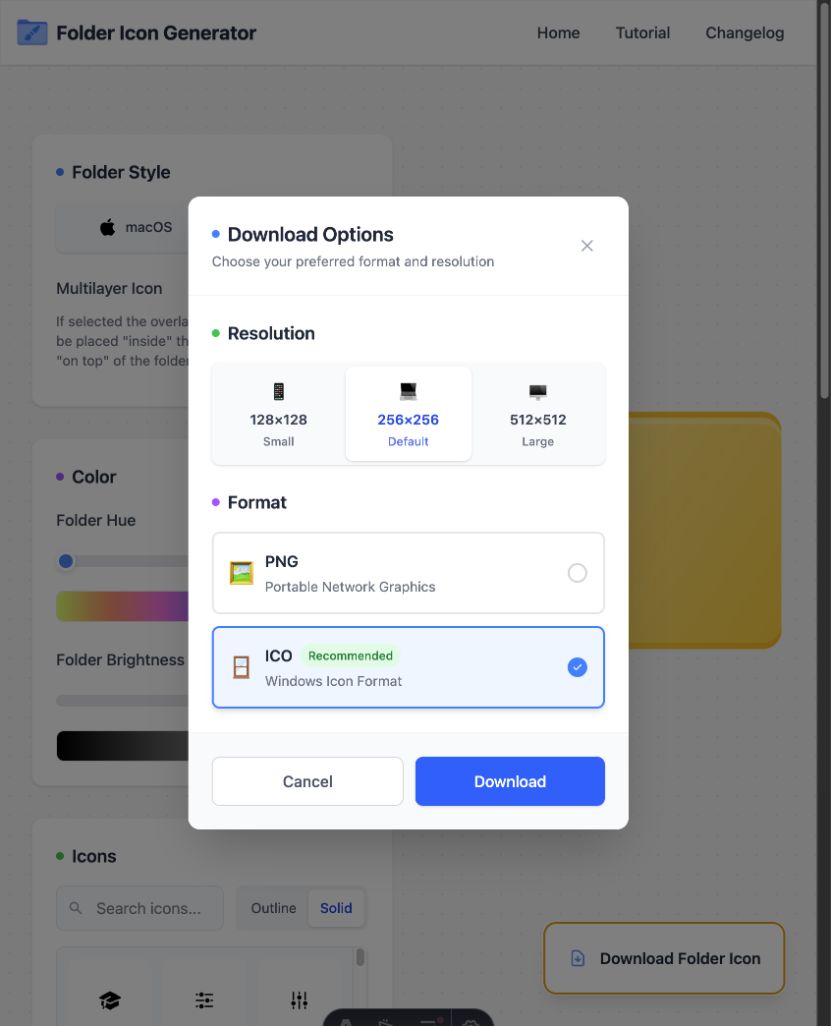
- Open Download Folder Icon and select ICO.
Choose how the image sits on the folder
Normal blend
Keeps the source colors. Use it for a brand mark, badge, or image that must remain unchanged.
Multiply or Overlay
Mixes the art with the folder color. Use it when the mark should feel like part of the folder surface.
Black and white
Removes source color so a busy image can work as a simple light-and-dark mark.
Opacity
Softens the mark. Keep enough contrast for compact list and sidebar views.
PNG and ICO are not interchangeable
PNG stores one raster image. ICO is a Windows icon container designed for operating-system icons and can represent the artwork at icon-friendly sizes. Renaming a file from .png to .ico does not convert it.
Pick an export size and test it
Start with 256×256 for a normal folder icon. Choose 512×512 when you want the largest file from the editor or a source you can reuse. After download, assign the ICO to one test folder and check small and large Explorer views before you create a full set.
If the ICO works in the Change Icon dialog but the mark looks weak in a list, the conversion succeeded; the design needs less detail or more contrast. If Windows cannot select the file at all, download it again with ICO chosen and make sure the name still ends in .ico.
Common mistakes to avoid
- Do not rename a PNG extension and expect Windows to read it as ICO.
- Do not place the only ICO copy in a temp or Downloads folder that you clear often.
- Do not fill the whole canvas with source art; leave room for the folder shape.
- Do not judge the result only at 512 pixels. Windows often shows it much smaller.
Keep the final ICO in a permanent location before assigning it. Moving or deleting the file can make the custom folder icon disappear.
Create the icon in your browser
No account is required, and images stay on your device.