
How to change a folder icon in Windows 11
Windows wants an ICO file for custom folder icons. Make one, put it somewhere it can stay, and then point the folder at it from Properties.
Updated October 7, 2026
Before you start
Test on an ordinary folder you created yourself, like one in Documents or on the Desktop. System folders, libraries, network drives, and work-managed PCs sometimes hide the Customize tab or block icon changes. Getting one simple folder working first tells you whether a problem is the icon or Windows.
Also decide now where your icons will live, for example Documents\Folder Icons. Windows doesn't copy the icon into the folder. It just remembers where the ICO file is. If that file moves later, the icon breaks.
Make the ICO file
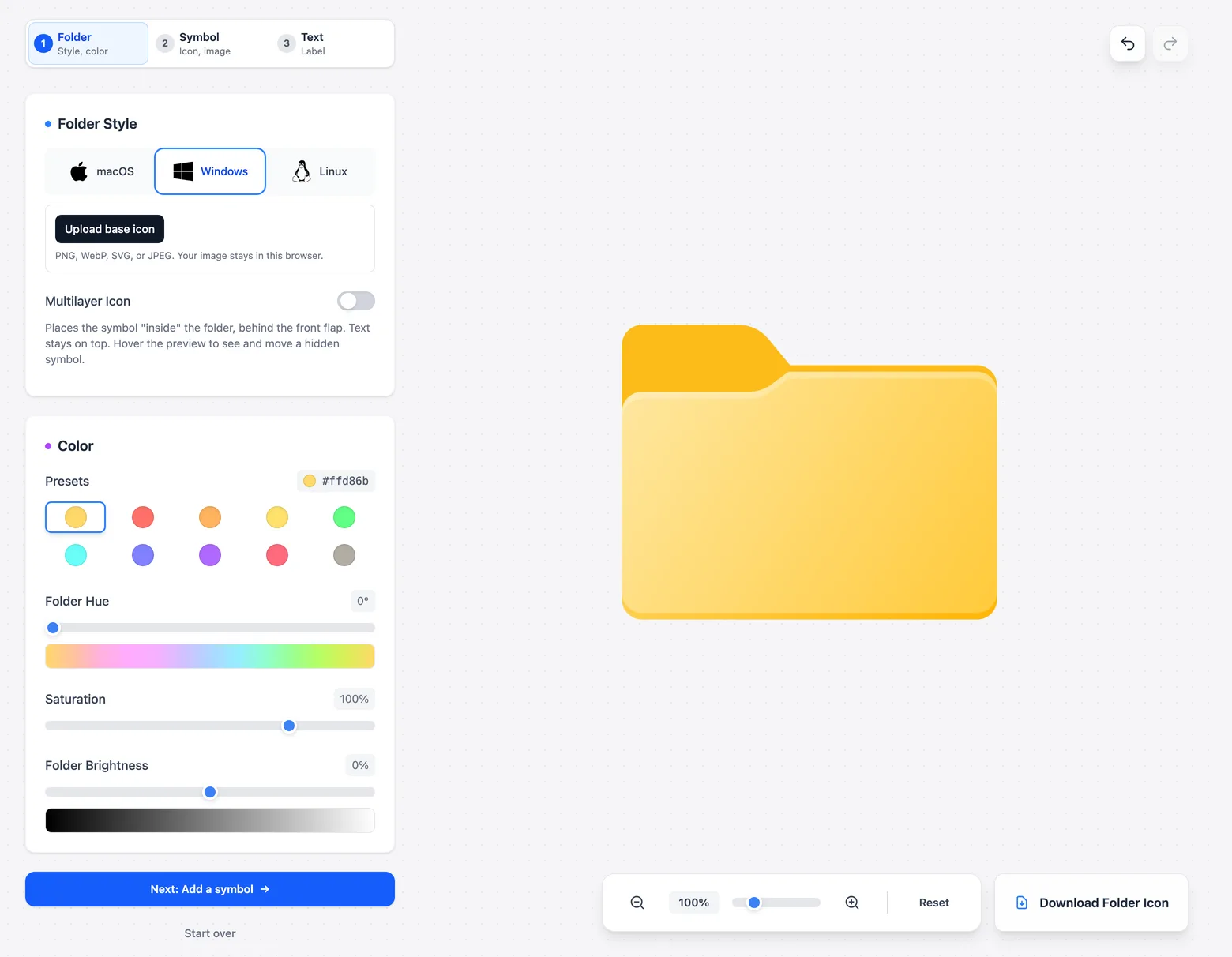
- Open FolderIcon.App and pick Windows.
- Choose a color with a preset or the sliders.
- Add a symbol, your own image, or a short text label.
- Click Download Folder Icon.
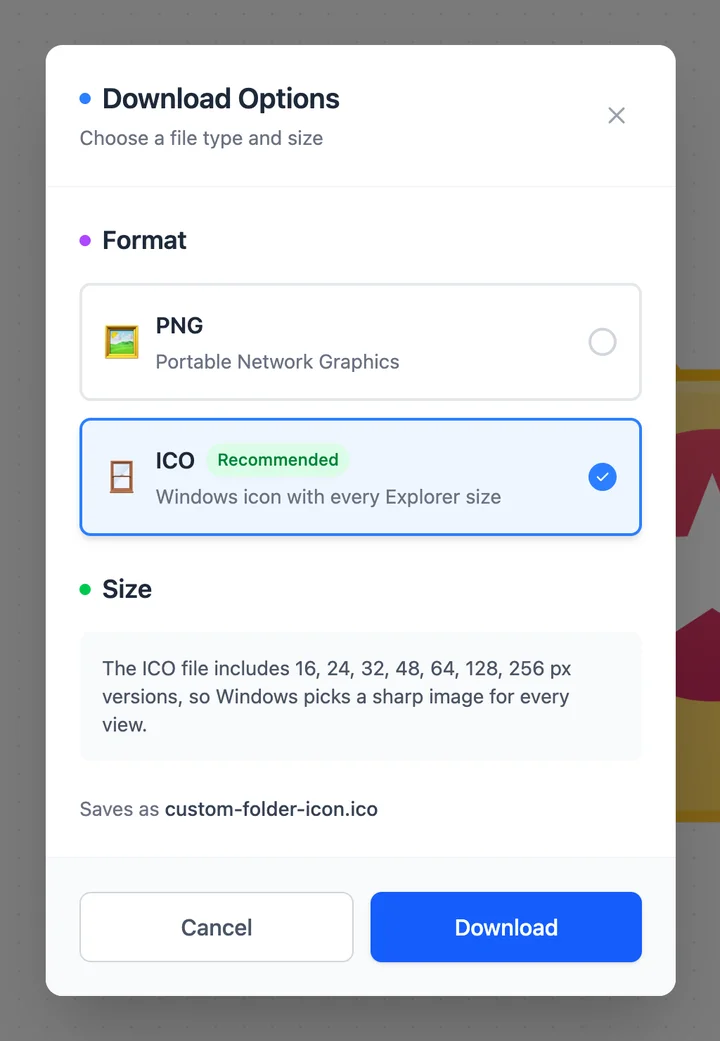
- Leave ICO selected. The file includes every size from 16 to 256 px, so there's nothing else to choose.
Apply the ICO to a folder
- Move the ICO out of Downloads and into your icons folder.
- Right-click the folder you want to change and choose Properties.
- Open the Customize tab.
- Click Change Icon, then Browse.
- Pick your ICO file and click Open.
- Click OK, then Apply.
Don't move, rename, or delete the ICO once it's assigned. Explorer looks it up by its path, and the folder will drop back to the default icon if the file goes missing.
Check it in a few views
Open the parent folder and switch between Details, Medium icons, and Large icons. A good icon is recognizable in all three. If the text turns to mush or the symbol disappears into the folder at small sizes, go back to the editor and try a shorter label, a bigger symbol, or more contrast.
Bold symbol
 Large icons
 Medium icons
 Details
Two lines of text
 Large icons
 Medium icons
 Details
Seeing the old icon? Windows sometimes holds on to it for a while. Open Change Icon again and check that it points to the right file before you redo the design. If it does, try the refresh steps below.
Go back to the default icon
Open Properties → Customize → Change Icon, click Restore Defaults, then apply.
What if you move or share the folder?
The custom icon usually won't follow the folder to another PC, because that PC doesn't have your ICO file at the same path. Moving the folder on your own PC is usually fine, as long as the ICO stays put. Back up your icons folder along with everything else, and expect to reapply the icons on a new computer.
If Explorer still shows the old icon
- Close the parent folder and open it again.
- Press F5 to refresh.
- Pick a different icon, apply it, then switch back to yours.
- Restart Windows Explorer from Task Manager, or sign out and back in.
No Customize tab at all? Make a new folder in Documents and check it there. If the new folder has the tab, the original one is a special folder type, a synced or network location, or it's locked down by a work policy.
Make your icon in the browser
No account needed, and your images never leave your device.