
Windows folder icon maker
Create a custom Windows folder icon
Combine the Windows folder shape with a custom color, symbol, image, or label, then export an ICO file that the Change Icon dialog can use.
Updated August 10, 2026
Design for Windows Explorer
Windows displays the same folder at several sizes, from compact lists to large thumbnails. Favor a clear silhouette, limited text, and strong contrast. A detailed logo may look good at 512 pixels but become indistinct in a small list view.
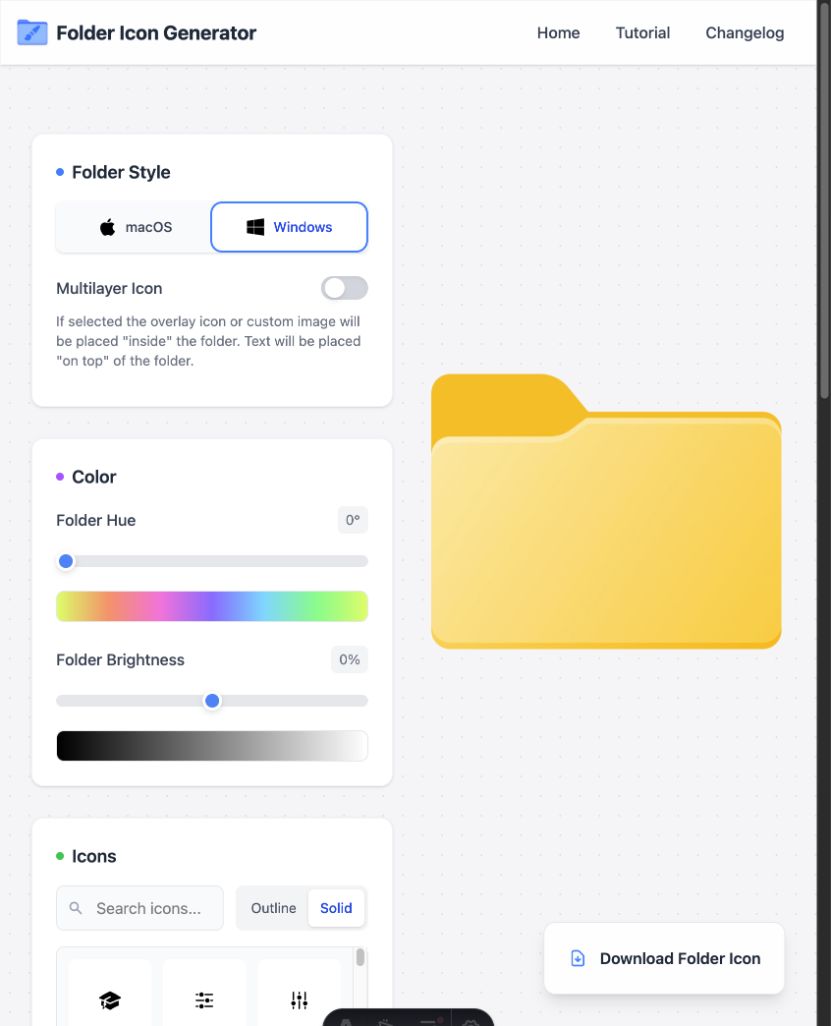
Build the Windows folder icon step by step
- Select Windows in the Folder Style panel. Choose the Windows 11 or Windows 10 base that best fits the folders around it.
- Set a folder hue and brightness. Keep enough light or dark contrast for the mark that you plan to add.
- Pick one built-in symbol, or place your own PNG or SVG on the folder. Resize it while checking the whole shape, not just the large mark.
- Use Normal blend mode to keep a brand mark unchanged. Try Multiply or Overlay for a mark that should take on the folder color.
- Add text only when a short code gives more value than a symbol. Windows list views leave little room for small type inside the icon.
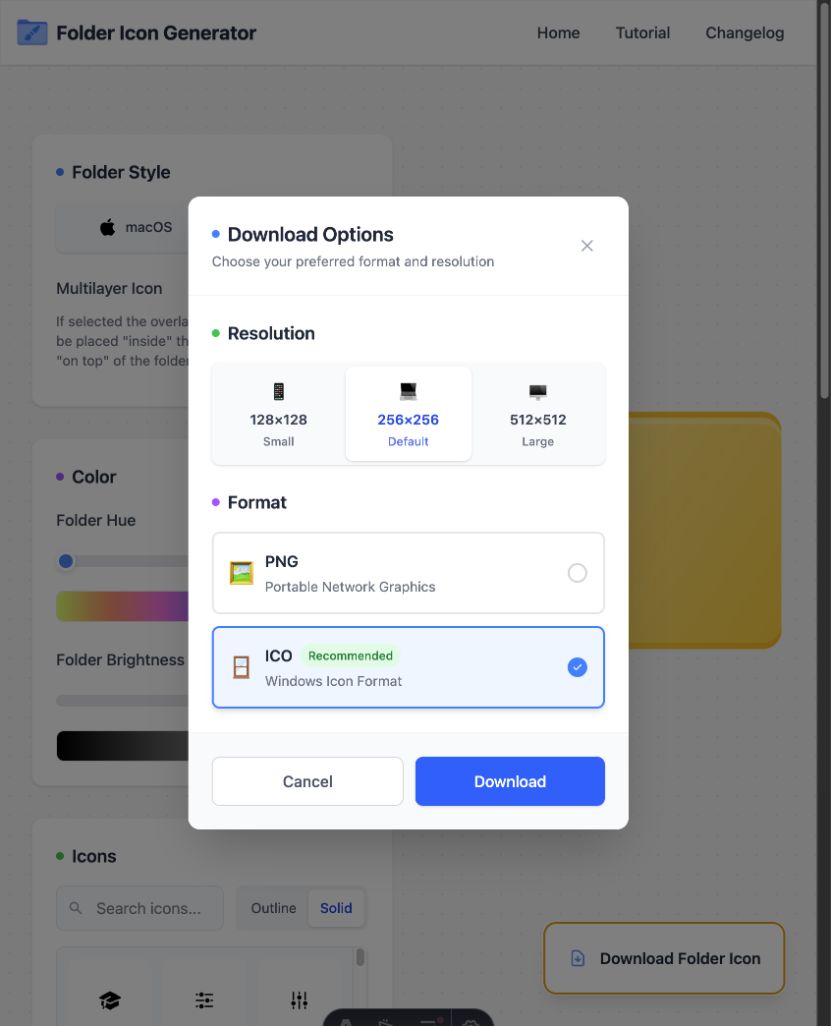
- Open Download Options, choose ICO, and save the file before you change the folder settings.
Recommended Windows export settings
- Format: ICO. The Windows folder Properties dialog does not accept a normal PNG as an icon file.
- Resolution: 256×256 is a strong default. Keep a 512×512 copy if you may reuse the artwork elsewhere.
- Storage: Move the final ICO to a stable folder before assigning it.
Put the ICO in a stable place
Windows stores a link to the ICO file when you assign it to a folder. If you move, rename, or delete that file later, File Explorer may fall back to a plain folder or show a stale icon. Create one folder for your custom ICO files and leave the assigned files there.
Do not keep the only copy in Downloads. Downloads is easy to clear, and file cleanup tools may remove old items there. A folder such as Pictures/Folder Icons or Documents/Folder Icons is easier to back up and keep.
Use your own PNG or SVG
Drop the source image onto the folder preview or paste it from the clipboard. Resize and reposition it, then use opacity, monochrome, and blend mode controls to integrate it with the folder artwork.
Test the icon before making a full set
Assign the first ICO to one test folder and view it as small icons, a list, and large icons. Check that the symbol remains clear and that the folder still looks like a folder. If the result only works at the largest size, return to the editor and remove detail or raise the contrast.
After the test, follow the Windows 11 apply guide for the full Properties workflow, restore steps, and refresh checks. Keep a 512×512 PNG copy as source art if you may need another file type later.
Create the icon in your browser
No account is required, and images stay on your device.